

Kids and teenagers today are typically thought of as “digital natives.” They were born a decade or two after the modern internet era began with America Online’s monthly dial-up internet in 1996. However, many of today’s kids and teens don’t know what dial-up is let alone understand the concept of a phishing email. They have an innate trust of technology and the internet in a way that we — their parents, grandparents and teachers — don’t.
As a college professor, Kshetri warns that there’s even an issue with kids and teens — all the way up through college students — feeling overly confident in their technical knowledge.
“Some of them have the idea that they know everything about cybersecurity. They know more about technology than anyone else — their parents, teachers, and professors. But just because they can do texting very fast doesn’t mean that they know a lot about technology, especially about cyber security. I think they are the most dangerous group to be victimized by cybercriminals because their awareness level is really, really low.”
So, how can we teach them about how to be safe? Part of this process involves teaching them about the different threats you’ll find on different platforms. For example, here’s a list of website-related safety threats (listed alphabetically):
- Adult websites,
- Insecure file-sharing websites (like Torrent),
- Malicious sites,
- Phishing websites, and
- Third-party app stores.
Kshetri says that he doesn’t know of much — if any — cybersecurity-related curricula that’s being offered in schools right now. His recommendation to educators is to integrate more cybersecurity-related information into their curriculum to help prepare students for the digital threats they face today and in the future.
How to Browse the Web Safely
One of the most important things you can teach kids and teens is the difference between a website being safe or secure. Don’t these terms mean the same thing? Not really. A website can use a secure (encrypted) connection, but unless you know who is on the other end of that connection, it doesn’t mean that it’s safe.
We say that because you can have an encrypted connection between your computer and a website, but if you don’t know who you’re connecting to on the other end, it’s not safe. Think of it like a spy using an encrypted phone line to share a secret message. Sure, they can share their message, but unless they know who is listening in at the other end, that doesn’t mean the message is safe.
This is why it’s vital that your “mini-mes” know who they’re interacting with online. Understanding how to determine a person or site’s true digital identity is critical to this task.
It’s very easy for a scammer to create a website with the logo
and contact information of a reputable organization.
Check If You’re on the Official Website
Whenever you visit a website, you shouldn’t trust the information displayed on the website itself. It’s very easy for a scammer to create a website with the logo and contact information of a reputable organization. Heck, they can even create website addresses that can trick you into thinking it’s the real deal.
So, how do you verify who created a website?
Learn to Read URLs
Another way to check the legitimacy of a website is to check its website address as well. But in order to do that, your kids and teens need to understand how to “read” a URL in the sense of understanding its five different components.
Here’s a quick breakdown of an example URL:
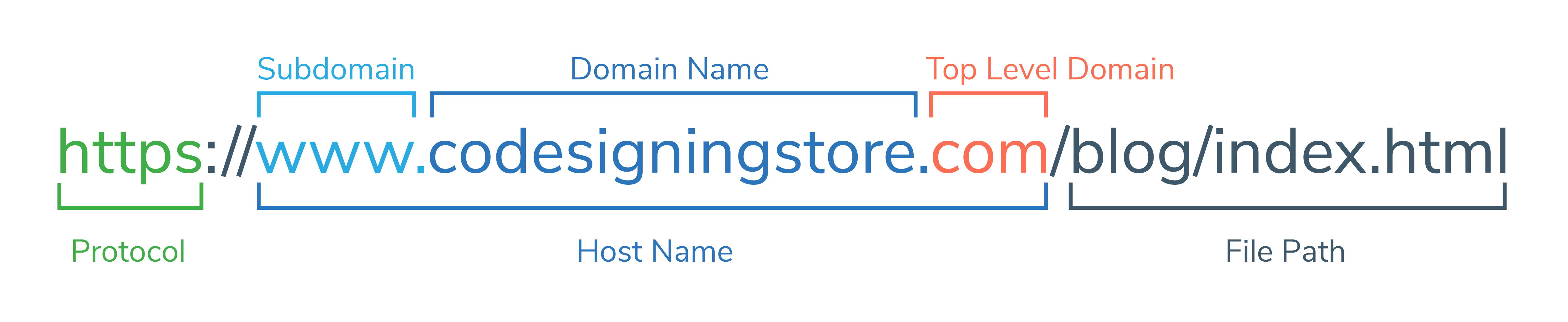
- Domain name — This is the main part of the URL that’s associated with the company name or brand. Examples include Google, Apple, and Microsoft.
- Top-level domain (TLD) — This is the part of the URL that people most often associate with website addresses. Some examples of common TLDs include .com, .net, .org, .gov, .biz, .co.uk, and .ca.
- Subdomain — The subdomain is an extension of your main domain. It’s a way for businesses to organize their sites in a way that makes it easy for users to navigate. And some websites have multiple “levels” of subdomains. For example, a first-level subdomain could be website.com. A second-level subdomain could be help.login.website.com. The further away from the domain you get (each section is divided by periods), the next level higher a subdomain you have.
- Protocol — The protocol is the channel through which data transmits whenever you visit a website. The insecure protocol HTTP stands for hypertext transfer protocol; the secur version of the protocol is HTTPS (hypertext transfer protocol secure). The first means that your data is transmitting in plaintext (a readable format); the latter means that your private or sensitive data transmits in a secure, encrypted format that no one without access can read.
- File path — This is, essentially, a road map for servers that they can follow to access files or data within a file system. It tells a server precisely where to find a specific page, post, file, or other asset. It’s a combination of the directory and subdirectory.
The subdomain, domain name, and TLD together form the host name.
Now that you understand the different parts of a URL, let’s dive into how to analyze them and what to look out for. We’ll consider Google’s official website as an example. So, when you want to visit the Google website, you want to make sure the URL reads https://www.google.com. If it says something like google.com.someotherdomain.com, it’s a fake (fraudulent) website.
Bad guys love to prey upon people by purchasing websites that look close to the legitimate ones. Some techniques they use include:
- Cybersquatting — This involves someone creating a website that looks visually similar to a legitimate website. However, there might be a difference in the order of the words. For example, “newsfox.com” instead of com.
- Typosquatting — A typosquatting URL is one that a cybercriminal buys to trick users who accidentally mistype or misspell a real website’s URL. An example of this would be “amzon.com” instead of com.
- Homograph attacks — This type of URL uses special characters outside the English alphanumeric system to create fake URLs that appear visually identical to real domains.
Check the Site’s Verified Details
First, look at the web address bar. Do you see a padlock icon (like what you see in the image below)? Cool. That means the website is sending data in a secure way. If not, that means the site isn’t secure and may be dangerous.
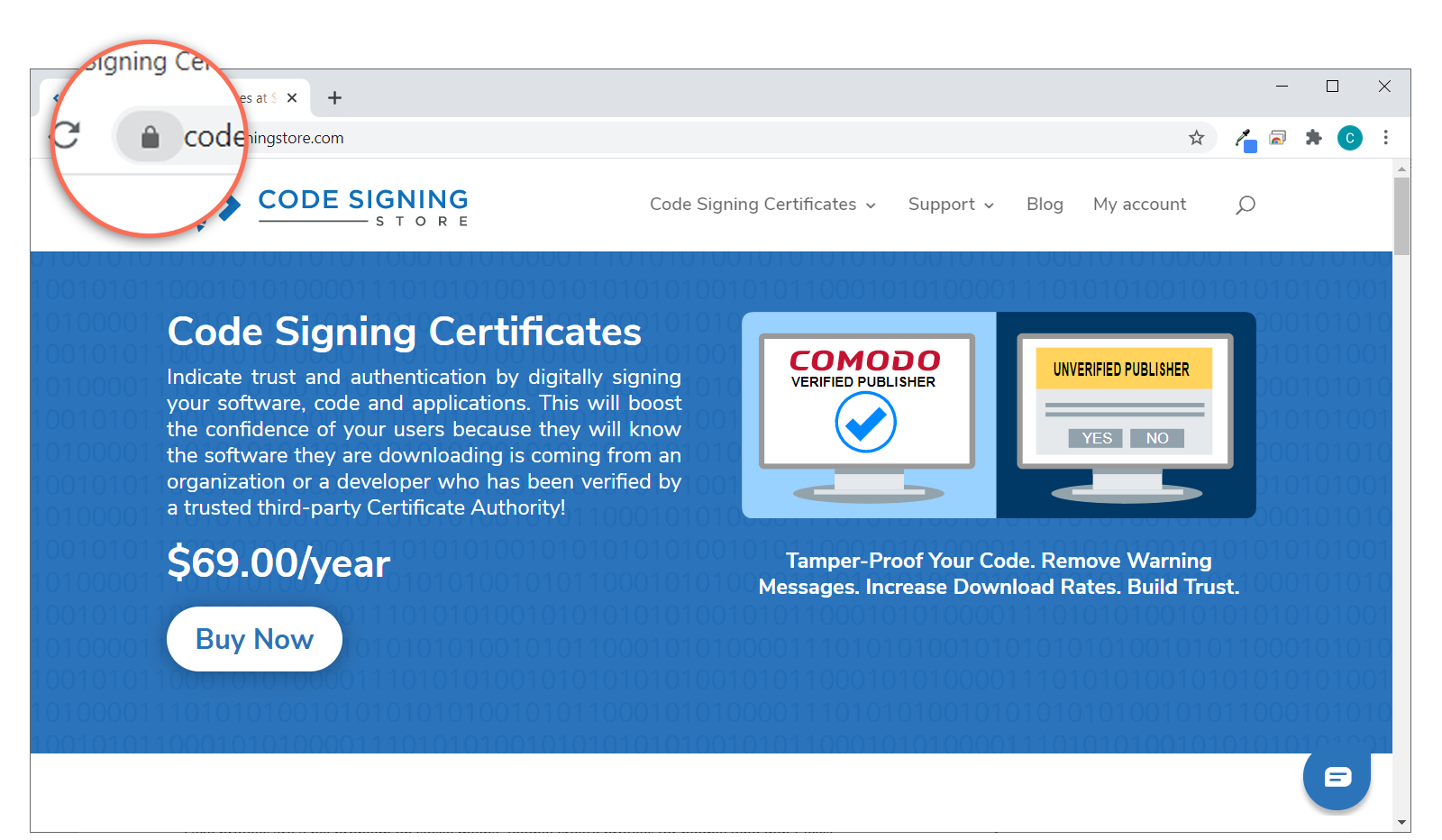
This screenshot of our website showcases the padlock security icon in the web address bar. This indicates
that the website is using a secure, encrypted connection for data transmissions.
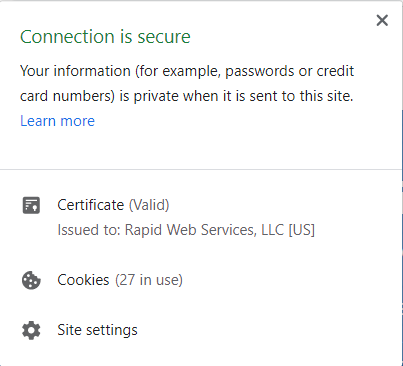
In this screenshot, you’ll see verified organization information for this certificate.
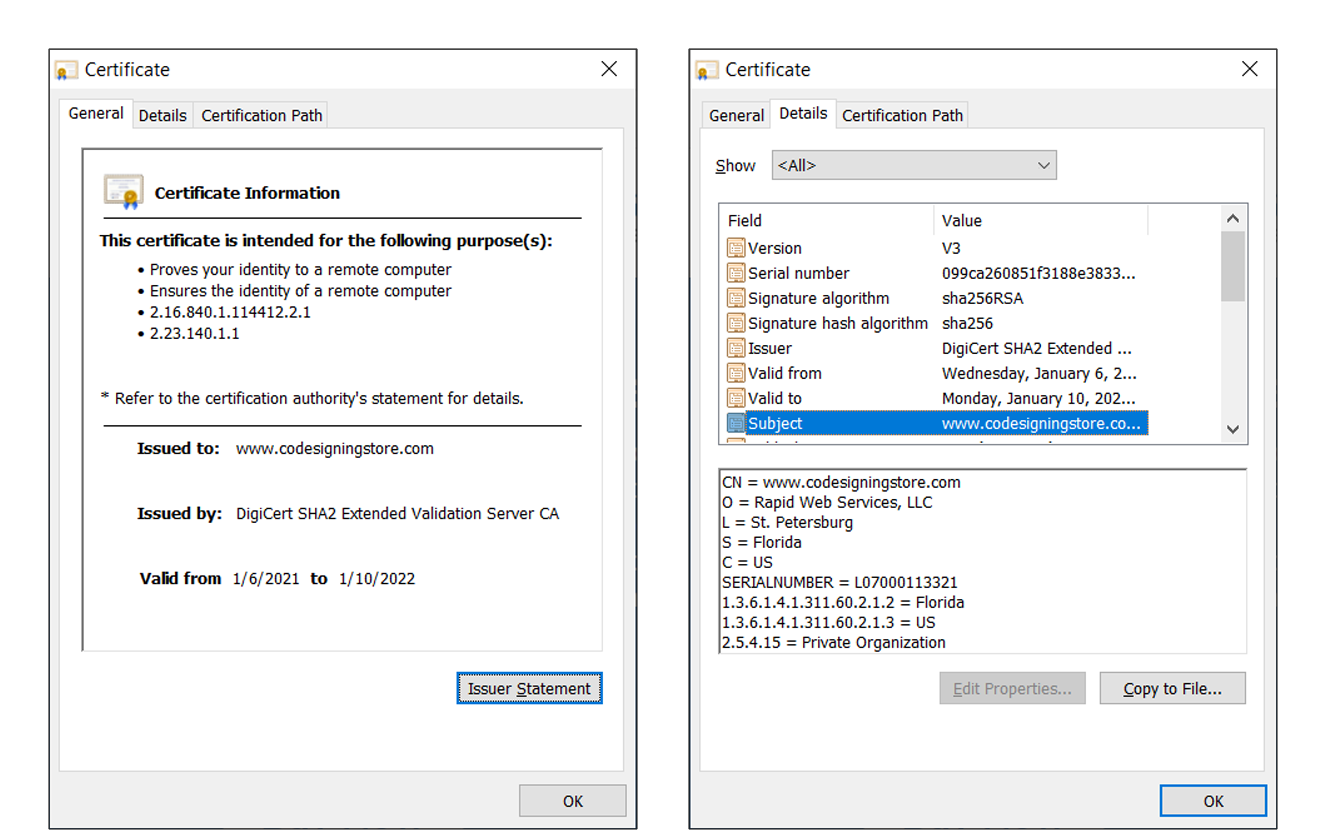
In this case, you’ll see that our website is registered to a company called Rapid Web Services, LLC. This is a company that’s based in the United States. The certificate was issued to www.codesigningstore.com and is valid through Jan. 10, 2022.
Of course, you can also look up more specific info about the company as well by clicking on the Details tab. There, you’ll want to select Subject and see all of the organization information that the certificate lists. So, based on the information in the screenshots below, you can see that:
- Our website is registered to Rapid Web Services, LLC.
- This company is based in St. Petersburg, FL.
- It’s a real organization because it’s been verified by the certificate authority that issued the certificate.
Check the Site’s Trust Seal
Something else you can do also is look for a trust seal (trust badge) on the website. Reputable websites often use trust seals that certificate authorities issue to their website. For example, look at the footer navigation of eBay.com:
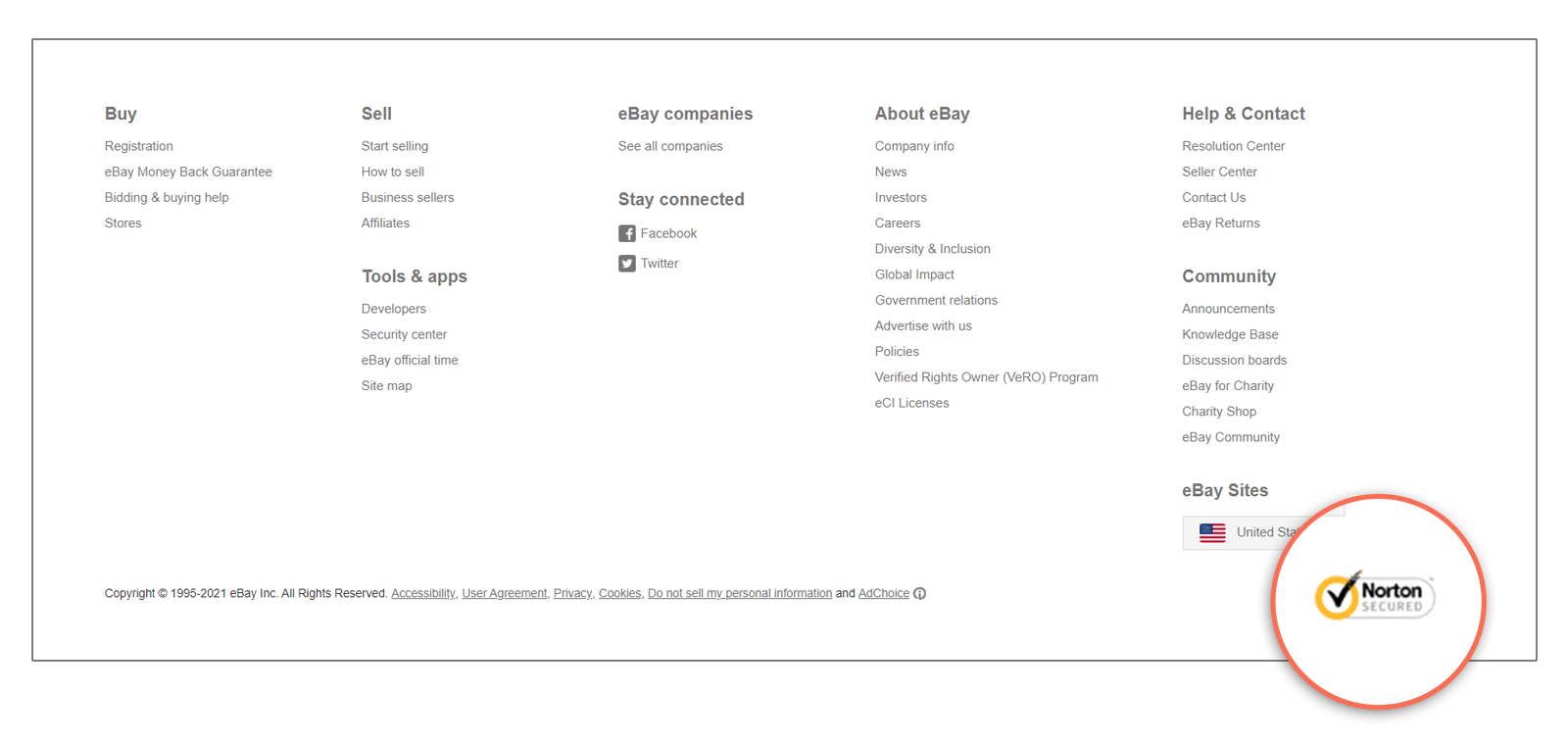
A screenshot of the bottom navigation on the eBay website shows the use of a Norton trust seal.
distinguish them?
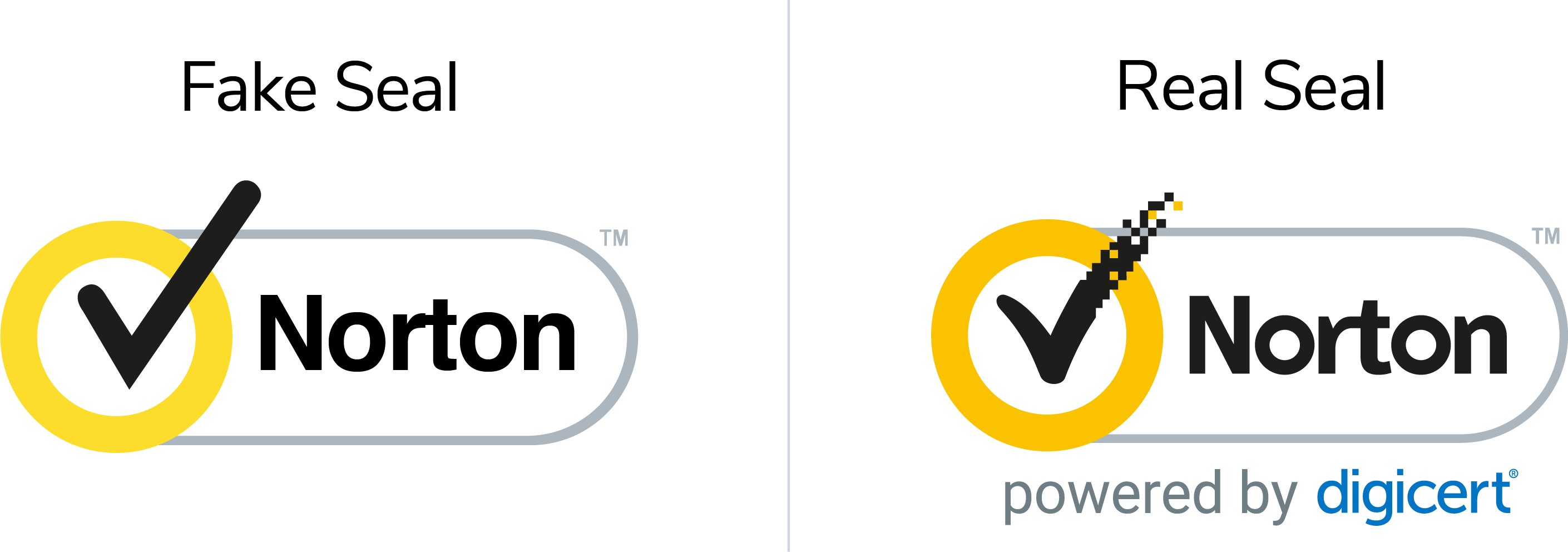
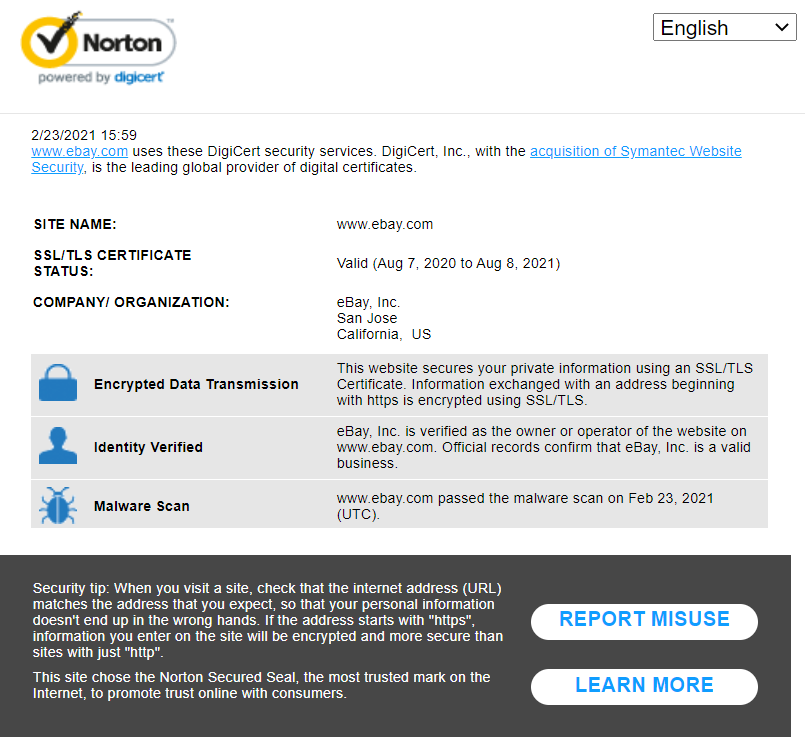
This is a screenshot of the Norton trust badge information for the website eBay.com.It informs users about the
verified website andorganization information as well as how long the SSL/TLS certificate is valid until.
Other Tips for Browsing the Internet Safely
Here are some more quick tips for website surfing safety:
- Never share personal info or images you wouldn’t want your parents or another person seeing.
- Remember that the internet is forever; don’t share information, images, or video that you wouldn’t want your parents or friends to see.
- Always use unique usernames and passwords (never reuse them for other accounts).
- Never share your login credentials with anyone but your parents.
- Only use secure websites when creating profiles, sending emails, or otherwise transmitting personal or sensitive information.
- Avoid the use of public wireless networks. If you have to connect to public Wi-Fi, always use a VPN to protect your data, especially if you are using an Android device.
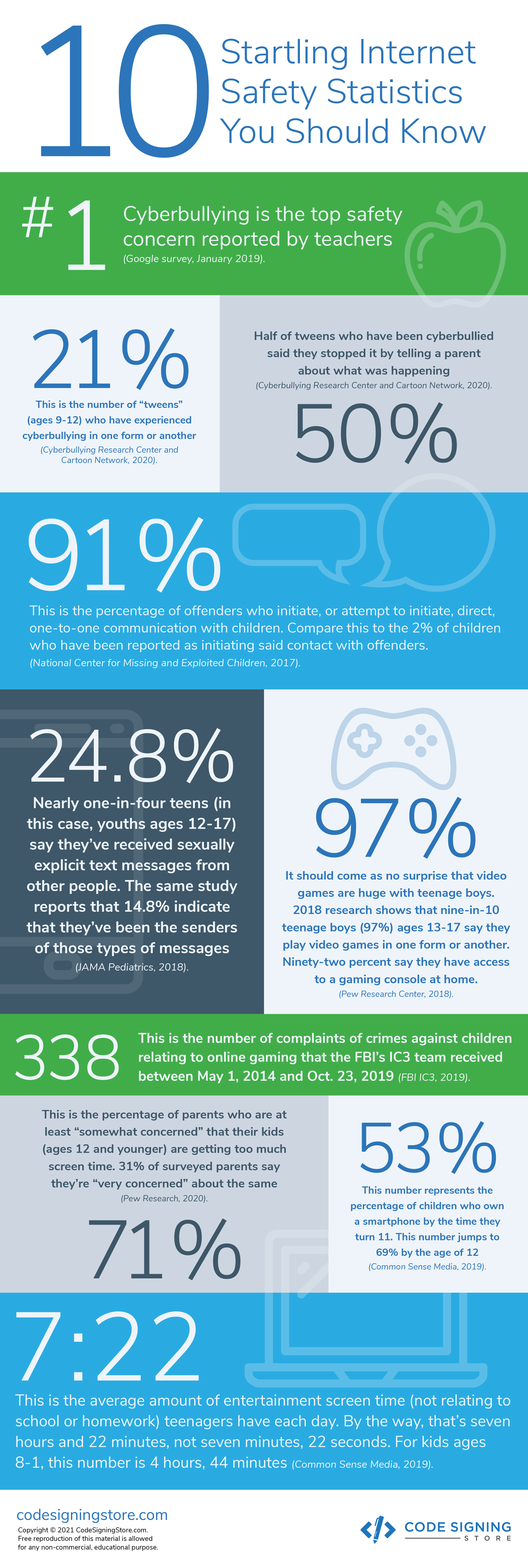
10 Startling Internet Safety
Statistics You Should Know
○What is the relationship between freedom and responsibility?
○What are some of the dangers associated with using the internet?
○Does the internet have a set of rules I should follow?
○What rights do I have when using technology or accessing the internet?
○What are my responsibilities when I am online?
○What do I need to know to keep myself safe while using the Internet?
Watch:
Had fun playing bad runner?Now watch Sam,Ellie and Alfie continue their advantures in the play like share films, the activities films will help you learn more about staying safe online.